
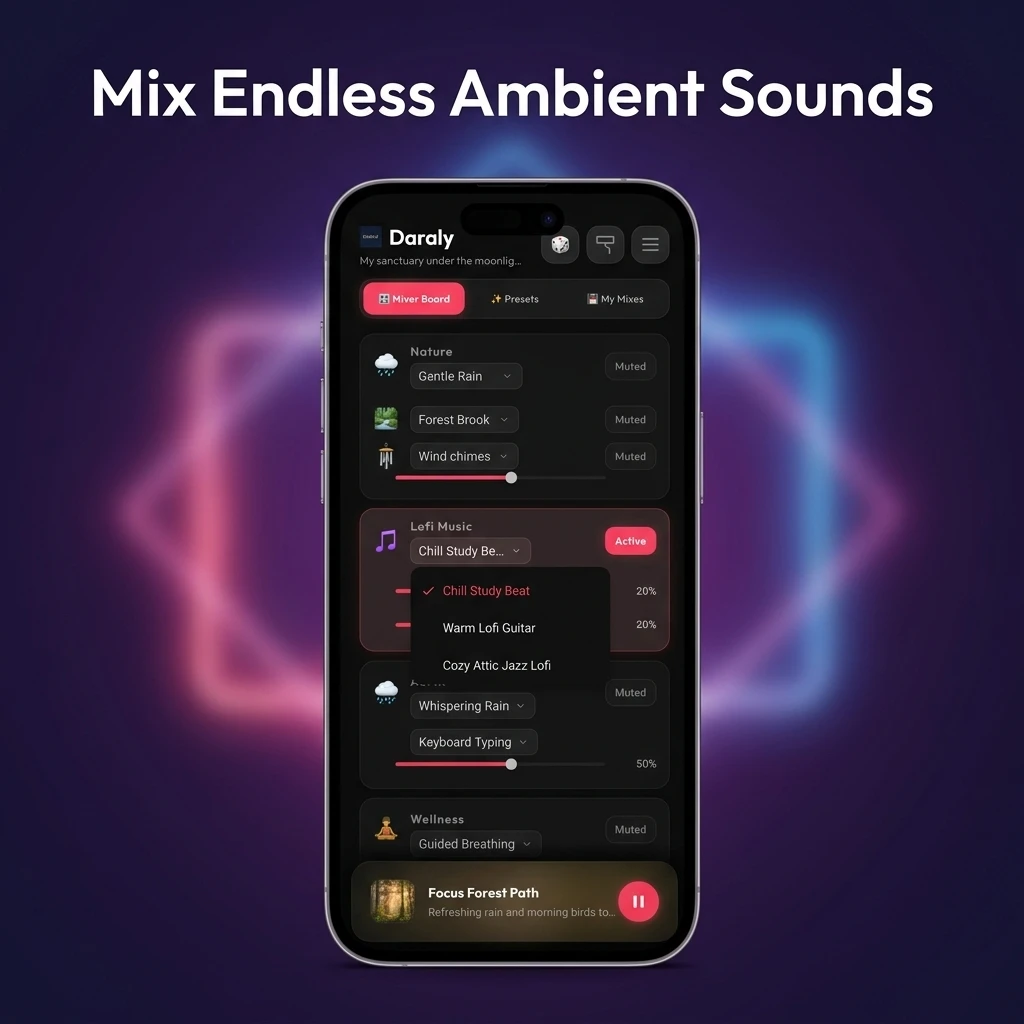
Choose sounds and build your own mix
Listen to one sound first, then add others gradually. Adjusting each sound separately makes it easier to compare different combinations.
This guide is based on the mixer, mixes, and timer menus in the app project. The layout and available features may differ in your installed version.
1. Turn on one sound and adjust its level
Choose a sound in the mixer and turn it on. Add sounds one at a time, listening for any that are too prominent or too quiet.
An individual sound slider controls its balance within the mix. If the whole output is too quiet, check the app master volume and device media volume before raising every individual sound.
- Select a sound in the mixer and turn it on.
- Adjust the active sound volume slider.
- Turn on one more sound and compare the balance between the two.
- Turn off sounds that you no longer want in the mix.
2. Save a combination you want to hear again
Save the current combination with a name to avoid setting up the same sounds and levels each time. Before saving, check that the active sounds and their volumes are the ones you want.
Loading a saved mix rebuilds the combination using its sounds and levels. Treat saved mixes separately from a backup: account synchronisation and restoration on another device are not guaranteed.
- Turn on the sounds you want to save and set their levels.
- Choose Save Current Mix and enter a recognisable name.
- Find and load the saved item under your custom mixes in the mixes library.
3. Set a timer and check the countdown
The sleep timer schedules playback to finish after the selected time. Check that a remaining-time display appears after setting it. Selecting another duration starts a new schedule from that selection.
The timer off option cancels the schedule. Use the playback pause control if you want to stop the sound immediately. If you decide to keep listening, check that the countdown has disappeared to confirm that the timer was cancelled.
- With sounds playing, open the timer menu.
- Choose a duration and check the remaining-time display.
- To cancel the schedule, open the timer menu and choose off.
If the sound is not what you expected
I selected a sound, but cannot hear it.
Check that the sound is turned on and that its level and the master volume are above zero. Check whether playback is paused, then check the device media volume and audio output.
The current sound does not match my saved mix.
Check the active sounds and their levels, then load the intended mix again from the library. Check the timer and device output volume separately. Do not assume that saved mixes will be restored after changing devices or clearing app data.
I turned the timer off, but audio is still playing.
Turning the timer off cancels automatic stopping. Use the playback pause control to stop immediately. If the schedule seems to remain active, note the remaining-time display and your app version when contacting product support.